Hello all. I am brand new to this. I am trying to set things up so I can get started, but the studio is saying my phone, a Samsung S24, is incompatible. I have usb debugging turned on. My Samsung watch 6 is connected to my phone & also has the debugging turned on. I can’t find a list of compatible devices anywhere, & I saw that I need to download some software called, “sdb over BT” , but cannot find this anywhere. I read on the website that the program will prompt me, but it hasn’t. The website’s how-to guide has not been helpful to me, probably because I am a novice. Can anyone help me out with these? Note: I wish to customize the face that I currently have & am using, very simple. Thanks to all.
I’m confused. Watch Face Studio is for Watches, not phones. What exactly are you trying to do?
Did you follow the instructions in Watch Face Studio on how to connect to your watch via WiFi Debugging and not Bluetooth? Bluetooth is not supported.
Do you have the source file (.wfs) for the face that you want to customise? You can’t just edit a face that you installed from elsewhere.
Hello, and thank you. I have it on ADB debugging. So I went and turn on the “wireless debugging.” Idk if I should turn off the 1st one. What do you think?
Hello. It’s one from the Samsung store. I was wondering about the how-to. Will that screen come up on the studio, for the editing? Thank you.
ADB Debugging has to be on. It’s what allows all other debugging to be enabled.
Hello again. Update: I’m still stuck, nothing is happening.
I have all 3 debugging buttons turned on both devices, wifi is on for both, phone & watch are both set to the same wifi, & phone is plugged into my PC. Oh, bluetooth is also turned on for both. But this studio isn’t doing anything. I have been all over the screen, & there is no start button, or anything that shows my devices. I have no idea what to do now. I still have not been prompted for installation of sdb for BT, so I’m just stuck. I even read that this is supposed to be easy. Umm, no. Does anyone have any ideas? I’m looking at the same screen as I had when I downloaded this software.
I’ll try the guide, but something is missing. Thank you!
Ok, one more update. I did some research online, & found some things. Bluetooth on my watch needs to be off; it turns out I did have it off, opps. I found some instructions.
I see that I needed to go in & get my IP address & port, along with a port code. I do have these now, but I am still stuck. I do have screenshots. This is definitely not easy at all. Well, I have 4 fields on a window for “add device”. Why is it saying “no compatible devices” before I even add one?? One is the pairing code, which changes each time. Got it. But, the other 3 are all the same thing. I am apparently supposed to type them in, but the studio won’t let me; the OK field is greyed out. The names are: IP, ip port, & pairing port. I only have 2 things, the ip & code. I can send the screenshots. So I guess, I’m to type the same thing, into the other 3?? Please help make this make sense {hint: it doesn’t.}. Thanks for reading.
1 Like
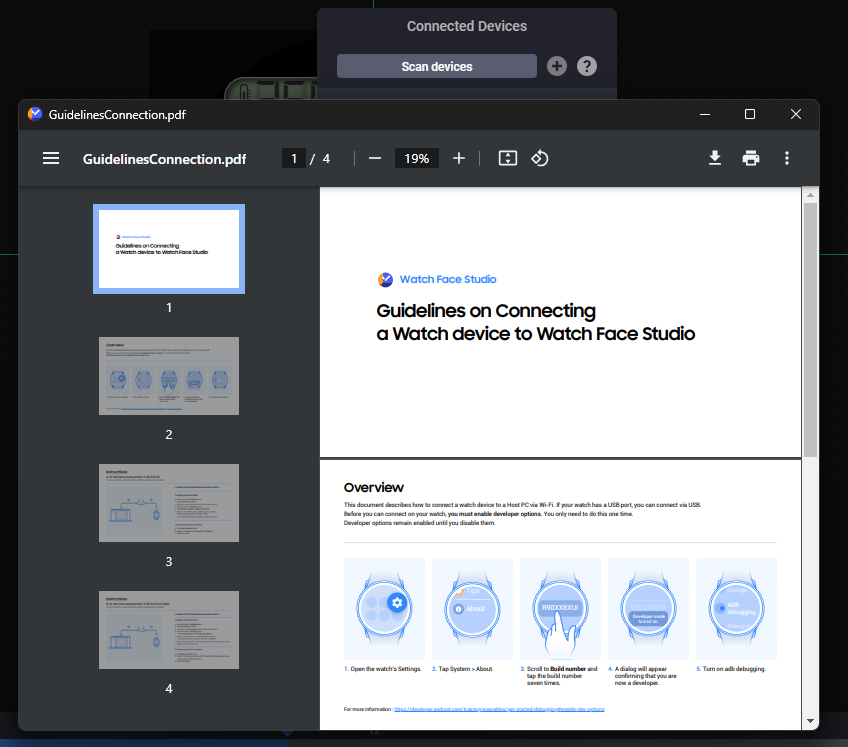
Try this mini guide to connect WFS to your watch.
On your watch, you need to:
- Disable Bluetooth;
- Go to Developer Options and enable ADB Debugging;
- Open the Wireless Debugging option, scroll down to IP address 192.168.xxx.xxx and port xxxxx.
- On your PC, after opening the WFS program, in the top right corner, you’ll see the Run ON Device option. Click on it and you’ll see a screen like the one I attached. Enter the IP address from before in the IP field.
- Enter the port number xxxxx in the IP Port field.
- Enter the code found on the watch after clicking + pair new device YYYYYY in the Pairing Code field.
- Enter the port number zzzzz in the Pairing Port field (just that, not the entire IP address), which you’ll also find in the Pair New Device section.
Then click OK, and if everything was done correctly, your watch will appear in the list.
After selecting + pair new device, remember not to click the “X” until your watch is paired and thus found in the list, otherwise you’ll have to redo everything.
Remember to disable ADB debugging and re-enable Bluetooth.
This took longer to write than to do.
1 Like
Hello Mayalona, this is Erica. I tried to email you, but the email wouldn’t send. That’s ok, I’ll reply here. Sorry for the length. First of all, thank you so much for your help!! I have completed all of the steps twice now. I have learned several things, which is good. However, even though I’m a techie, this isn’t simple, easy, etc. and I had to figure out exactly which numbers are to go into the 4 fields. Yes, I was confused, especially that 5 digit number.* As far as I can tell, my IP address goes into field #1. That’s easy. Then I think the 5 digit code goes into fields #’s 2 & 4. *I think that’s one field too many…one is certainly enough. Then the 6 digit code goes into field #3. Idk what else to do; please don’t give up on me!
Unfortunately, I am getting the same error message. It says, “Failed to pair a device. Please need the data of the device or check your input.” Well, I just did both of those, twice. Is there a way to override the error, & how to do just that? Oh, yes, I should tell you that the “scan devices” field isn’t working properly. It just blinks. How do I report that, so they can fix it, do you know? So now I can’t do that, either.
What do you think, please? Much thanks from this dummy 
Hi Erica, follow the video
2 Likes
Hello Mayalona, it’s Erica. I’ve figured it out!! I found & got the codes right. Thank you so much!
1 Like